Microscopes and Tango
This page explains how a microscope becomes available to the assistant. An instrument is an AutoScript host:port, and
you register and approve it on this computer. The twin and a real microscope take the same path.
Register a microscope
Open the control panel (Cmd+,) and choose Microscopes.
The Digital Twin is already listed. Select Register. The app starts the twin if it is not running.
Any other microscope:
- Select Add microscope.
- Enter a name using Latin letters or numbers, its AutoScript address, and the port (7521 by default).
- Select Add microscope. The app checks it can reach that address.
- Select Register.
Then, for either one:
- Wait for Waiting for your approval.
- Select Approve. A real instrument asks you to confirm first.
- The assistant restarts and the workspace reopens, which interrupts any reply in progress.
- In the workspace, tick the device under Instruments. Ticking is per conversation.
| Status | Meaning | You can |
|---|---|---|
| Not registered | Known, not running | Register |
| Connecting… | The device service is starting | Wait |
| Waiting for your approval | Running, but not offered to the assistant | Approve, Reject |
| Online | Available to the assistant | Disconnect, Unregister |
| Registered, offline | Approved, service not running | Connect, Unregister |
| Needs attention | Something failed; the reason is shown | Register or Connect again |
Approved devices are remembered. After restarting the app, select Connect; no new approval is needed.
How it is built
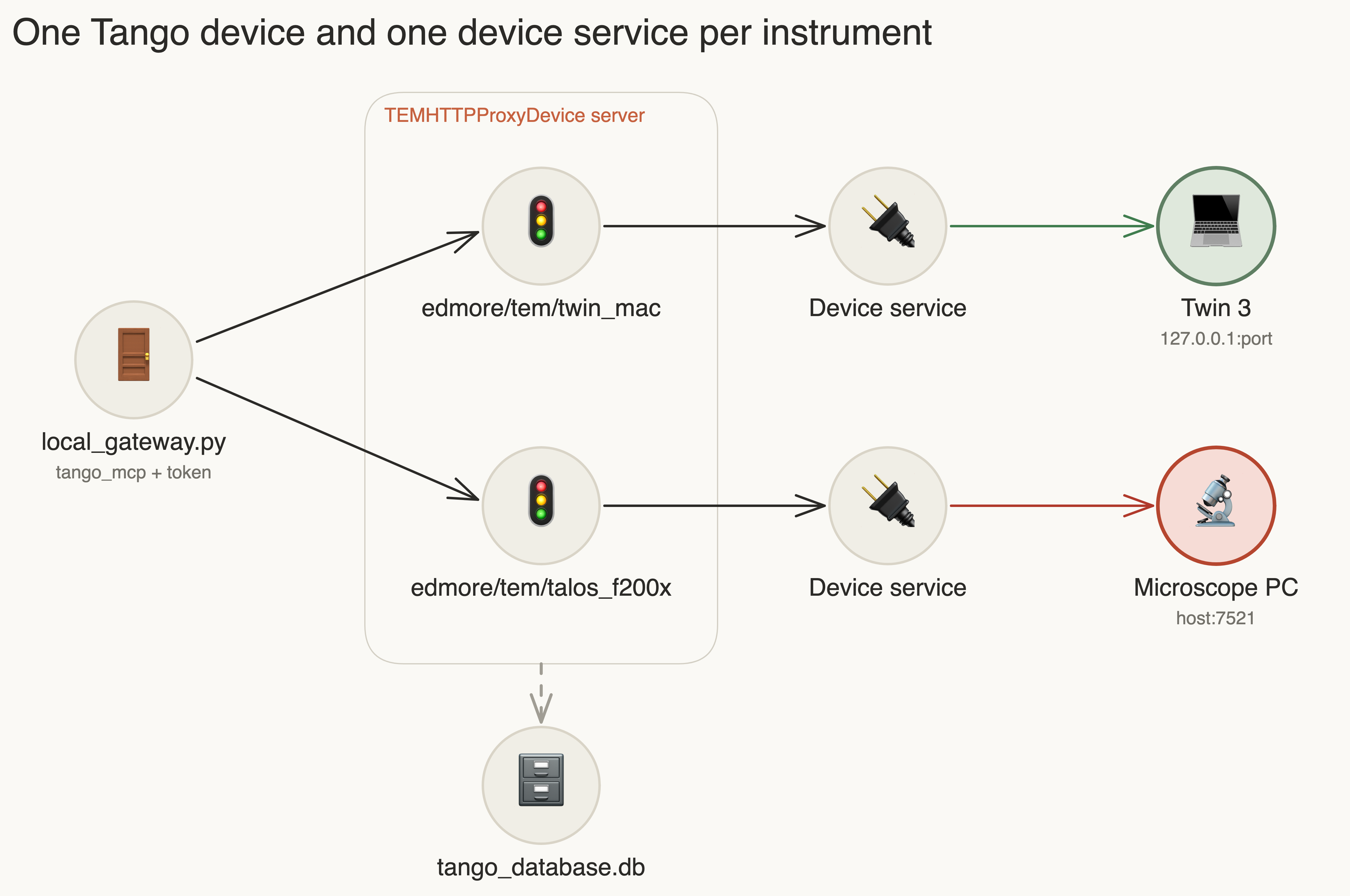
| Part | Source | Job |
|---|---|---|
| Device manager | desktop/devices.mjs |
Devices, approval state, starting everything below |
| Stack launcher | desktop/runtime/local_tango.py |
Starts the database, proxy devices and gateway in order |
| Gateway | desktop/runtime/local_gateway.py |
The Tango MCP gateway plus a bearer token |
| Tango modules | vendor/edmore_windows_node/source/tem_twin_autoscript |
tango_mcp, tango_stack, http_tango_device, unchanged in design from the cloud stack |
| Device service | Same repository, edmore_tem_node and remote_monitor |
Exposes 40 tools over an authenticated local HTTP API |
Tango runs from the moment the app starts, with no devices if none are approved. In that state the gateway offers only
list_devices. Approving or unregistering writes devices/tango/http-nodes.json and restarts the stack, which is the
same mechanism the cloud deployment calls a reload. The device list is fixed for each start of the stack, so the
assistant restarts to pick up the new tools.
If the stack stops unexpectedly, the app restarts it. A failed start is retried once.
Tools the assistant gets
Tools are named mcp__tem_twin__<tool> and take a device argument. The server name stays tem_twin because the
built-in tem-twin-* skills refer to it.
| Group | Examples |
|---|---|
| Discovery | list_devices, select_device, microscope_status |
| Optics | get_defocus, set_defocus, set_objective_stigmator, set_beam_tilt |
| Stage and beam | get_stage, move_stage, blank_beam, unblank_beam |
| Acquisition | acquire_camera_image, get_image_data_cached |
| Alignment | align_beam_and_c2, align_gun_tilt, align_objective_stigmation |
| Measurement | measure_beam, measure_objective_astigmatism |
Each device reports a kind: simulation for the twin and hardware for everything else. While a device is offline it
reports remote.
Rules the stack keeps
- Each device runs one operation at a time. A second call is refused, not queued.
- Nothing is retried automatically. A timeout does not prove the instrument stopped, so check its state first.
- A result must carry the identity of the device that was asked.
- The name
edmore/tem/twinis reserved by the cloud service, so the local twin isedmore/tem/twin_<hostname>.
Troubleshooting
| Message | What to do |
|---|---|
| The local Tango service didn't start | Read devices/tango/stack.log in the app data folder, or quit and reopen the app |
| Couldn't reach AutoScript at that address | Check that AutoScript is running on that computer, and the network or VPN |
| The device service took too long to start | Select Register or Connect again |
| The device service stopped unexpectedly | Select Connect, and check the twin or instrument is running |
| A tool says the device is unavailable | Tick the device under Instruments, or select Connect |
Known limits
list_devicesreportsavailable: truefor an approved device that is offline. A tool call on it fails with a clear error and does nothing.- Approving or unregistering restarts the assistant.
- Approved devices need Connect after each app start.
- Only the twin has been exercised end to end. A real microscope has not been connected through this path, and a different AutoScript version than the bundled 1.17 client may not work.
- Tested on macOS only. Starting and stopping the stack on Windows is unverified.
The cloud path
edmore_windows_node can also register a device with a shared EDMORE server, with pairing codes and administrator
approval. This app does not use that path. See DEVICE_ACCESS.md in that repository.